Introduction — What Is This System?
The Gaskell Law Case Management System is a secure, web-based platform designed to help every member of the legal team work more efficiently — from managing cases and clients to tracking invoices, scheduling hearings, and communicating via email. Everything you need is in one place.
Case Management
Create, track and manage legal cases across 13+ categories
Document Storage
Upload and organise client files and legal documents securely
Hearing Scheduling
Record and track all court dates and hearing outcomes
Billing & Invoices
Issue, track and manage client invoices and payments
Email Integration
Send and receive emails linked directly to cases
AI Legal Assistant
Get instant answers about UK law from our built-in AI
File Notes & Time
Record billable time and detailed work notes per case
Lawyer Management
Register, view and manage all legal staff profiles
🗺️ How to Navigate the System
On every page, you will see a dark sidebar on the left — this is your main navigation menu. It is always visible and contains links to all the main pages:
| Menu Item | What It Does | Who Can See It |
|---|---|---|
| + Create New Case | Opens a quick form to start a new legal case | All staff |
| Dashboard | Home screen showing all case categories | All staff |
| Emails | Read, send and manage emails | All staff |
| All Cases | See every case in the system at once | All staff |
| Payments | All invoices and payment status overview | All staff |
| AI Assistant | Ask questions about UK law | All staff |
| Lawyers | Manage lawyer profiles (admin only section) | Administrators |
Your Account & Email Setup
Before you can use the system, your account must be created by an administrator. This section explains what you will receive, what to do when you first log in, and how your Gaskell Law email address is set up.
Account Created by Administrator
Your system administrator will create an account for you. You will be assigned a role — either Staff or Administrator.
Your account will be linked to your Gaskell Law email address (e.g. firstname.lastname@gaskellaw.com). This email address is used to log in and to send/receive case emails.
Your Default Password
Every new account is created with the same default password:
This password is shared for all new accounts. You must change it to your own private password as soon as you first log in. See Section 4 for instructions.
Your Gaskell Law Email Address
Your gaskellaw.com email address allows you to send and receive emails directly within the case management system. Emails you send from the system will come from your Gaskell Law address, and client replies will arrive in the system's Inbox.
| Detail | Value |
|---|---|
| Email format | firstname.lastname@gaskellaw.com |
| SMTP Host (sending) | mail.gaskellaw.com |
| SMTP Port | 465 |
| IMAP Host (receiving) | mail.gaskellaw.com |
| IMAP Port | 993 |
You configure the email connection inside the system under Emails → Settings. See Section 18 for full instructions.
Change Your Password Immediately
After your first login, go straight to your profile page to set a private password. Go to: https://dashboard.gaskellaw.com/profile
See Section 4 — Profile & Password for the full step-by-step guide.
Never share your password with anyone — not even IT staff or your manager. Gaskell Law takes data security very seriously. The default password AskHuzaifa178* should be changed on your very first login.
Signing In to the System
You must sign in every time you access the system. Your login credentials are private and keep your data secure.
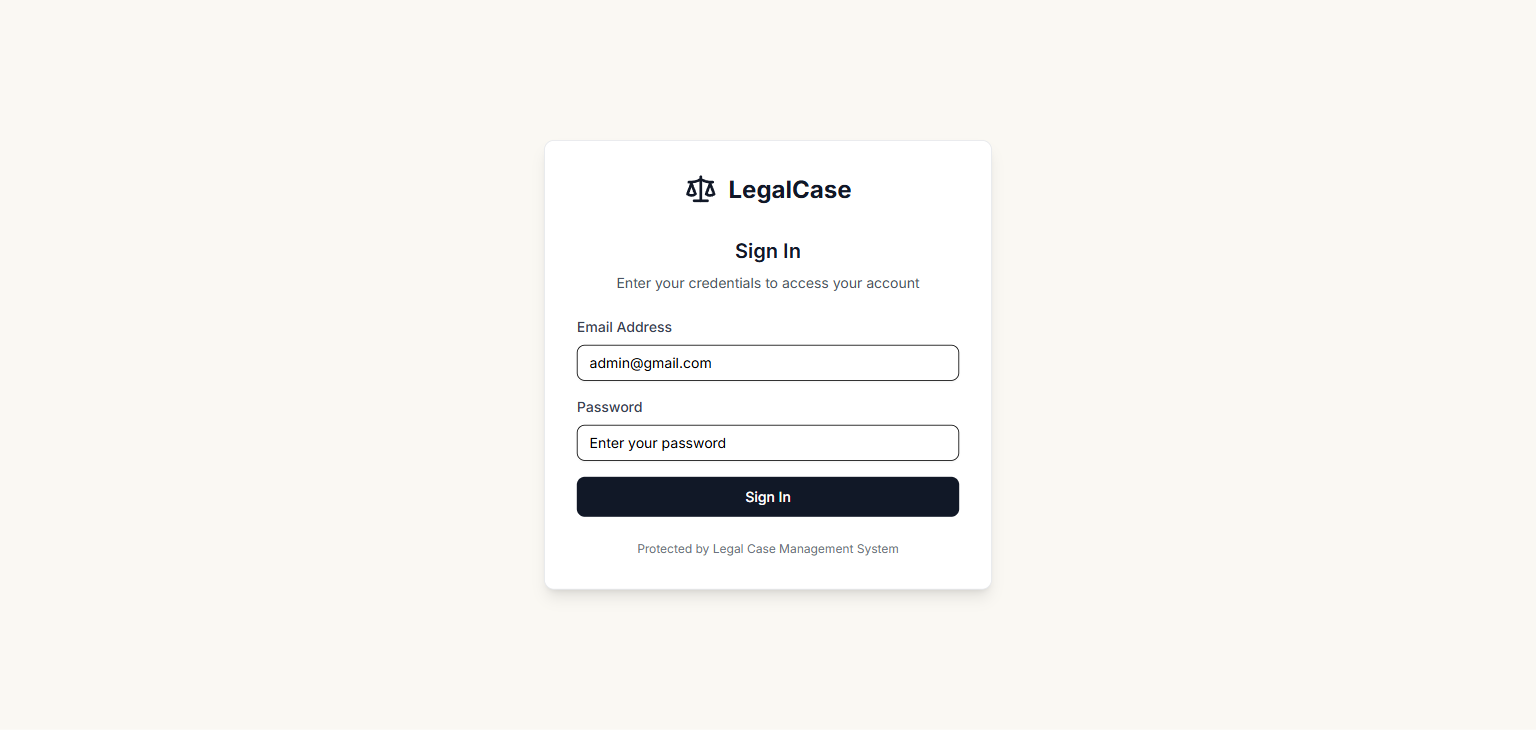
The Sign In page — this is the first screen you see when you visit the system. Enter your email address and password, then click Sign In.
📋 Step-by-Step: How to Sign In
Open your web browser (Chrome, Edge, Safari, or Firefox) and visit:
https://dashboard.gaskellaw.comThe Sign In page will appear automatically.
Click in the Email Address field and type your Gaskell Law email address.
Click in the Password field and type your password. (First-time users: use
AskHuzaifa178*)Click the "Sign In" button.
You will be taken to the Dashboard automatically.
Once signed in, your name and role (e.g. "Huzaifa Admin – Administrator") will appear at the bottom-left of every page, confirming you are logged in.
Contact your system administrator to have your password reset. You cannot reset it yourself on the login page.
Your Profile & Changing Your Password
Your profile page lets you update your name and, most importantly, change your password. You must change your password after your first login. Visit: https://dashboard.gaskellaw.com/profile
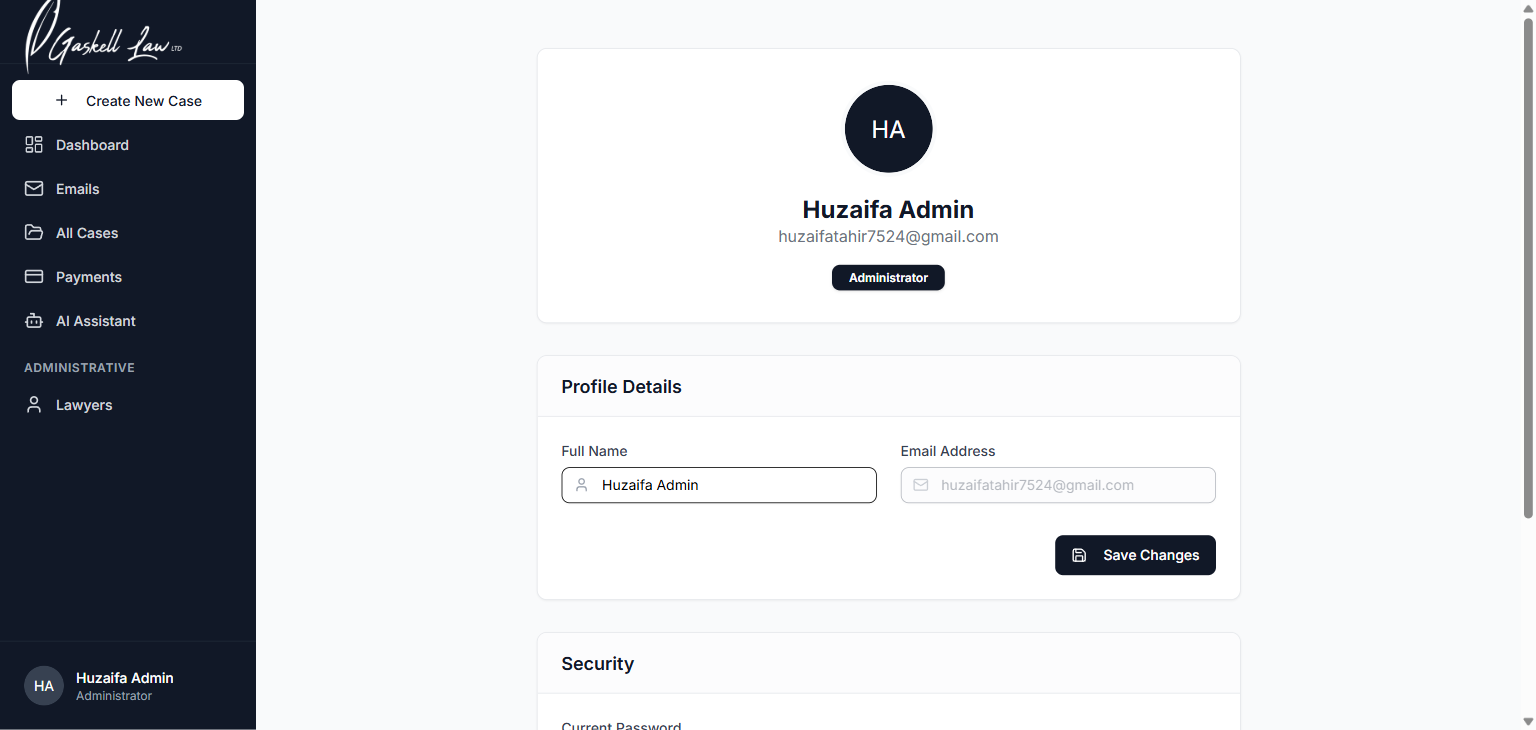
Profile page — shows your name, email, a form to update your profile details, and the Security section where you change your password.
✏️ What You Can Do on the Profile Page
| Section | What You Can Do |
|---|---|
| Profile Header | Shows your avatar initials, full name, email address and role badge |
| Profile Details | Update your Full Name — then click Save Changes |
| Email Address | Your email is shown but cannot be changed here (contact your admin) |
| Security — Change Password | Enter your current password, then your new password twice, then click Update Password |
🔑 Step-by-Step: How to Change Your Password
All new accounts share the default password AskHuzaifa178*. Change it immediately to protect your account.
Scroll down to the "Security" section.
In the Current Password field, type:
AskHuzaifa178*(or your existing password if you've changed it before)In the New Password field, type your new private password.
In the Confirm New Password field, type your new password again (exactly the same).
Click the "Update Password" button.
A success message will confirm your password has been changed. From now on, use your new password to log in.
- Use at least 8 characters
- Mix letters, numbers and symbols (e.g. !, *, @)
- Do not use your name or birthday
- Do not reuse old passwords
- Write it down somewhere safe, not on a sticky note near your screen
Dashboard — Your Home Page
After signing in, the Dashboard is the first page you see. It displays all the legal case categories as folder tiles. Click any folder to view the cases inside it.
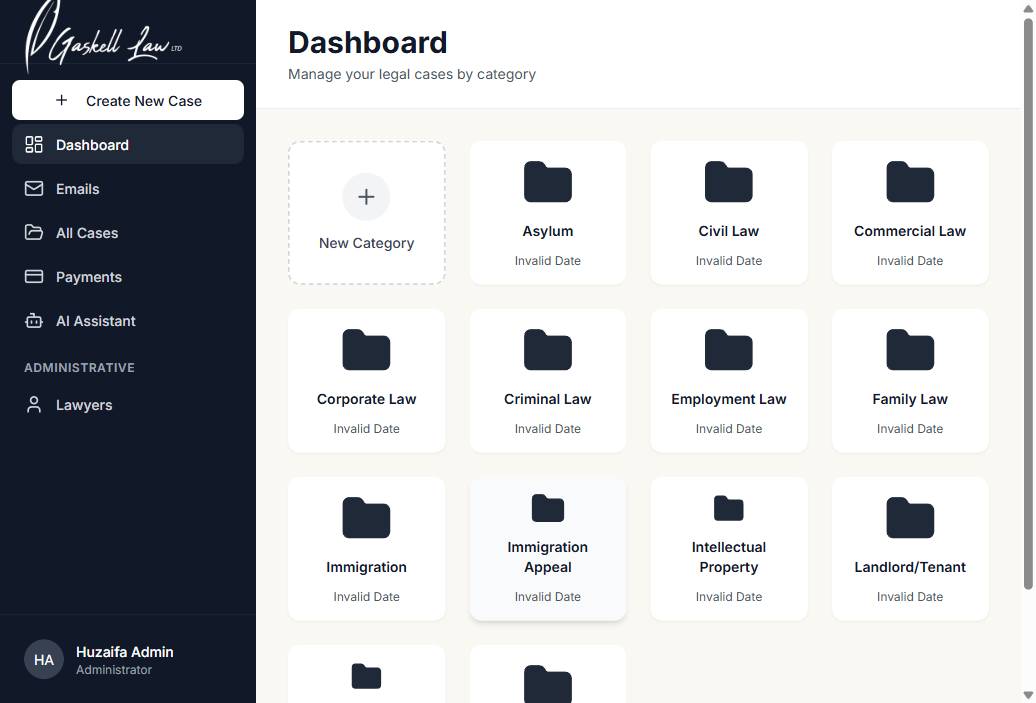
Dashboard — all legal case categories displayed as folder tiles. Click any tile to view the cases in that category.
🗂️ Case Categories Available
Asylum
Asylum cases
Civil Law
Civil disputes
Commercial Law
Business law
Corporate Law
Corporate matters
Criminal Law
Criminal cases
Employment Law
Employment disputes
Family Law
Family matters
Immigration
Immigration cases
Immigration Appeal
Appeal cases
Intell. Property
IP & trademarks
Landlord/Tenant
Property disputes
Medical Negligence
Med-neg claims
Personal Injury
PI claims
New Category
Admin: add new
➕ Creating a New Case (Quick Method)
The fastest way to start a new case is from the sidebar button at the top of every page:
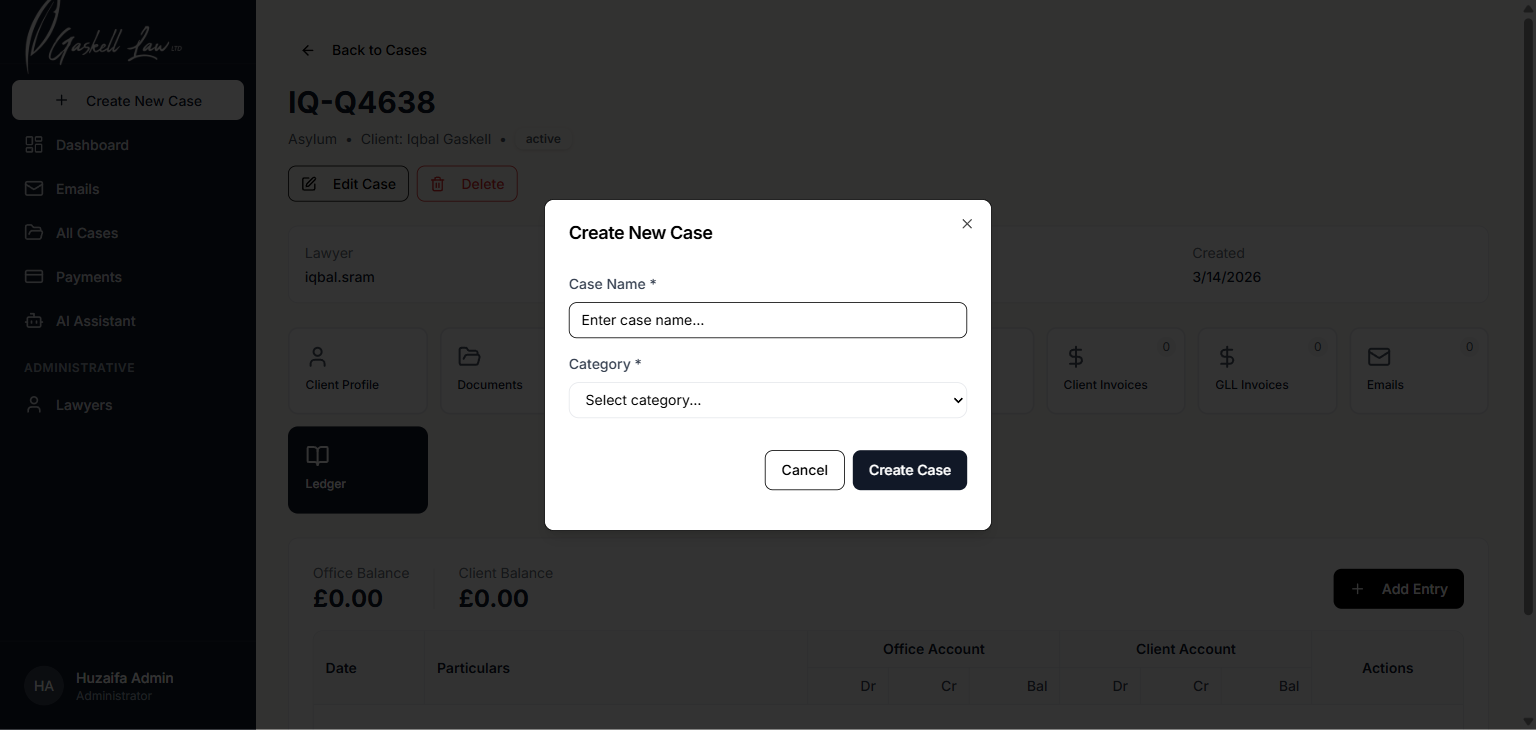
Create New Case modal — type a case name, choose the category, and click Create Case.
Click "+ Create New Case" in the left sidebar at the top.
Type a Case Name — this is usually the client's name or a unique reference.
Click the Category dropdown and select the correct legal area.
Click "Create Case" — the case is created and you are taken to it immediately.
All Cases — View Every Case
Click All Cases in the sidebar to see every single case in the system, regardless of category. Use the search and filters to find exactly what you need.
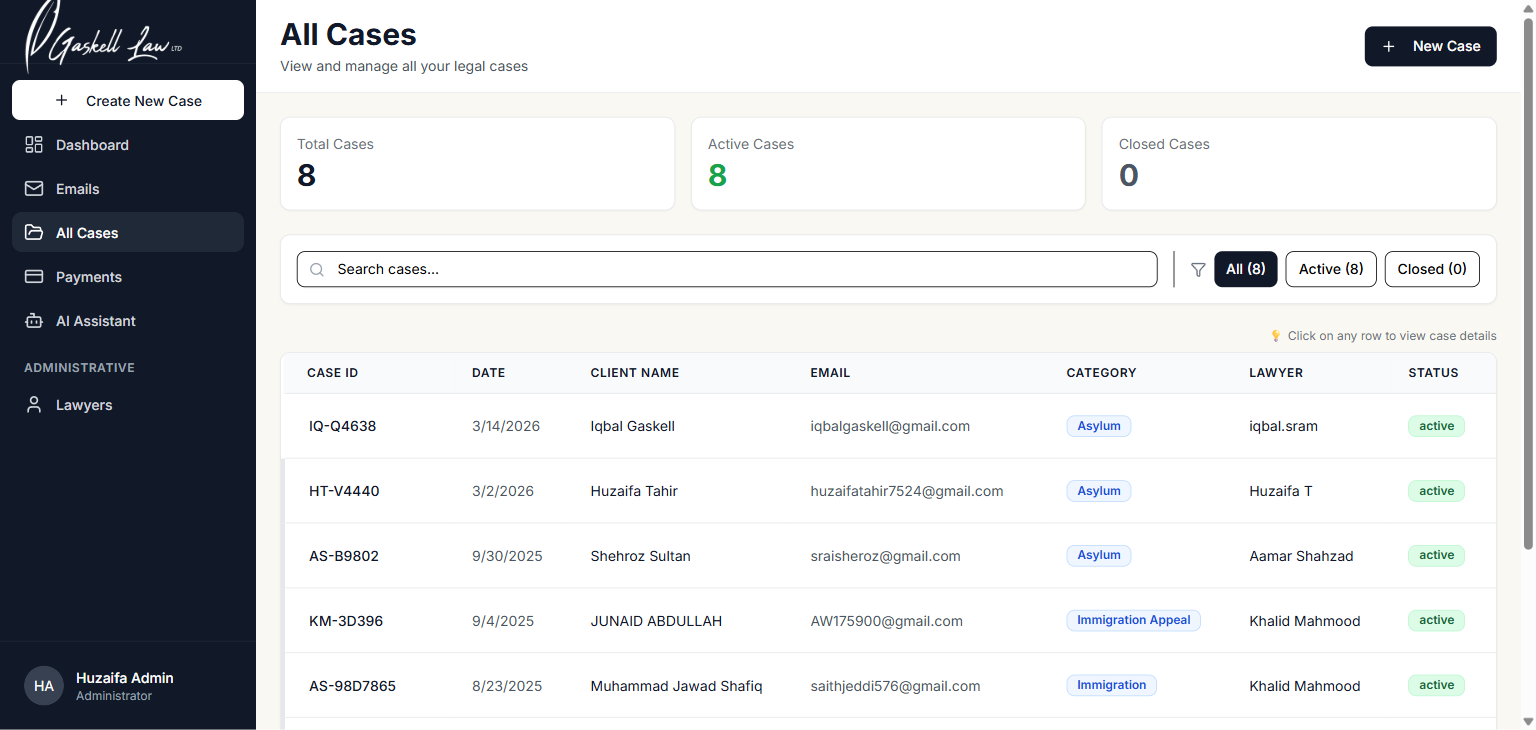
All Cases page — summary stats at the top, then a sortable, searchable table of all cases. Click any row to open that case.
| Feature | How to Use It |
|---|---|
| Summary cards (Total / Active / Closed) | Shows overall case counts at a glance — green numbers are active |
| 🔍 Search bar | Type a client name, Case ID or email — list filters in real time |
| Filter tabs (All / Active / Closed) | Click to show only open cases or only completed ones |
| Case ID column | Unique code like IQ-Q4638 — searchable |
| Click any row | Opens the full Case Detail page for that case |
| + New Case button | Creates a new case — same as the sidebar button |
Case Categories — Organised by Legal Area
Click any category folder on the Dashboard to see a list of all cases within that legal area. Each category has its own searchable case list.
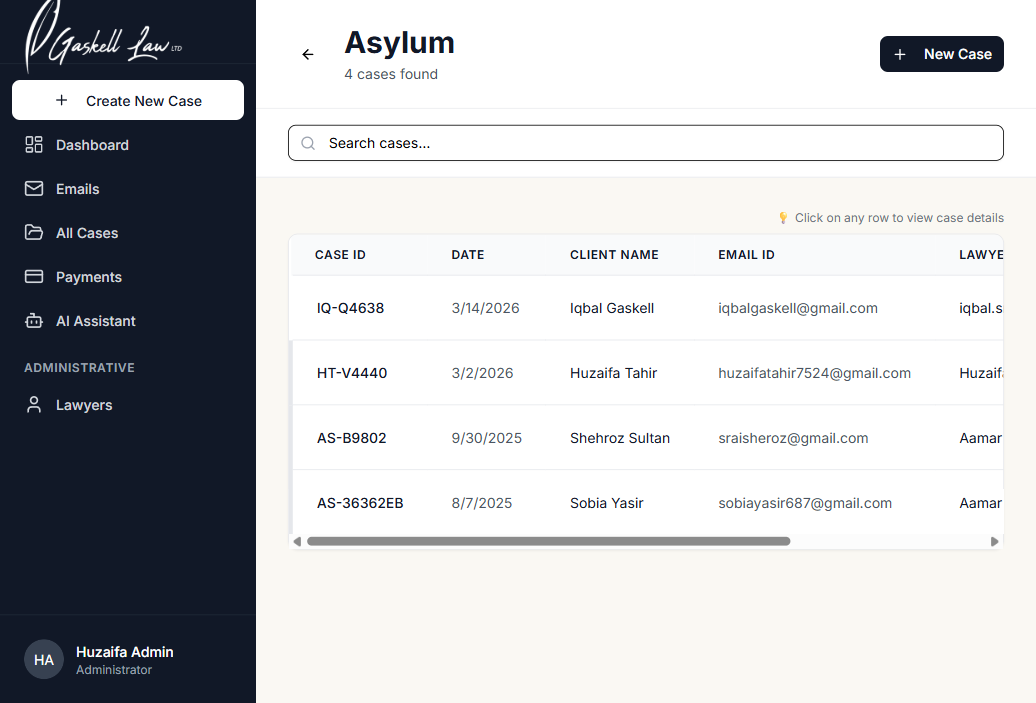
Category view (Asylum shown) — lists all cases in that area. Same layout applies to all other categories.
| Column | What It Shows |
|---|---|
| Case ID | Unique identifier (e.g. IQ-Q4638, AS-B9802) |
| Date | When the case was created |
| Client Name | Full name of the client |
| Email ID | Client's email address |
| Lawyer | The lawyer handling this case |
| Status | active or closed |
Use the Search cases… bar at the top of each category page to find a specific client by name, Case ID, or email — the list filters automatically as you type.
Inside a Case — The Case Detail Page
Click any case to open the Case Detail page — the central hub for all information about that specific case. This page contains the case header, a quick-info bar, and nine feature tabs.
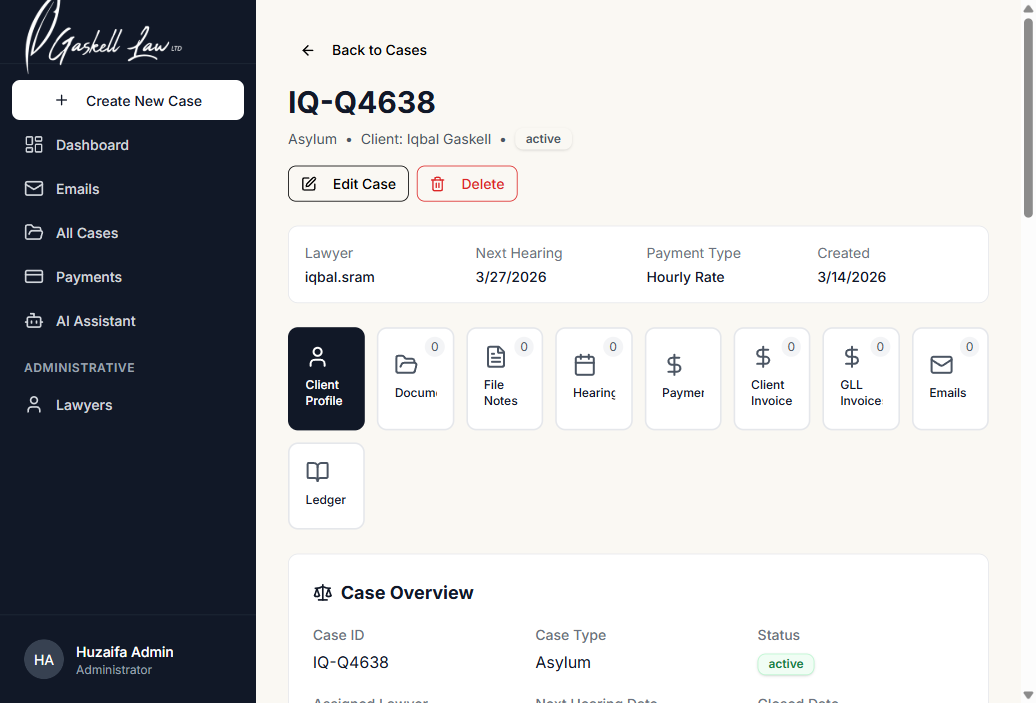
Case Detail page — shows case header (ID, status, client name), quick-info bar, and the nine tabs at the top of the content area.
🔢 The Nine Case Tabs
Each tab opens a different area of the case. Click a tab name to switch:
Client Profile
Personal info & ID verification
Documents
Upload & organise files
File Notes
Time-recorded work notes
Hearings
Court dates & outcomes
Payments
Invoice & payment overview
Client Invoices
Bills sent to client
GLL Invoices
Internal firm invoices
Emails
Emails linked to case
Ledger
Office & client accounts
✏️ Editing a Case
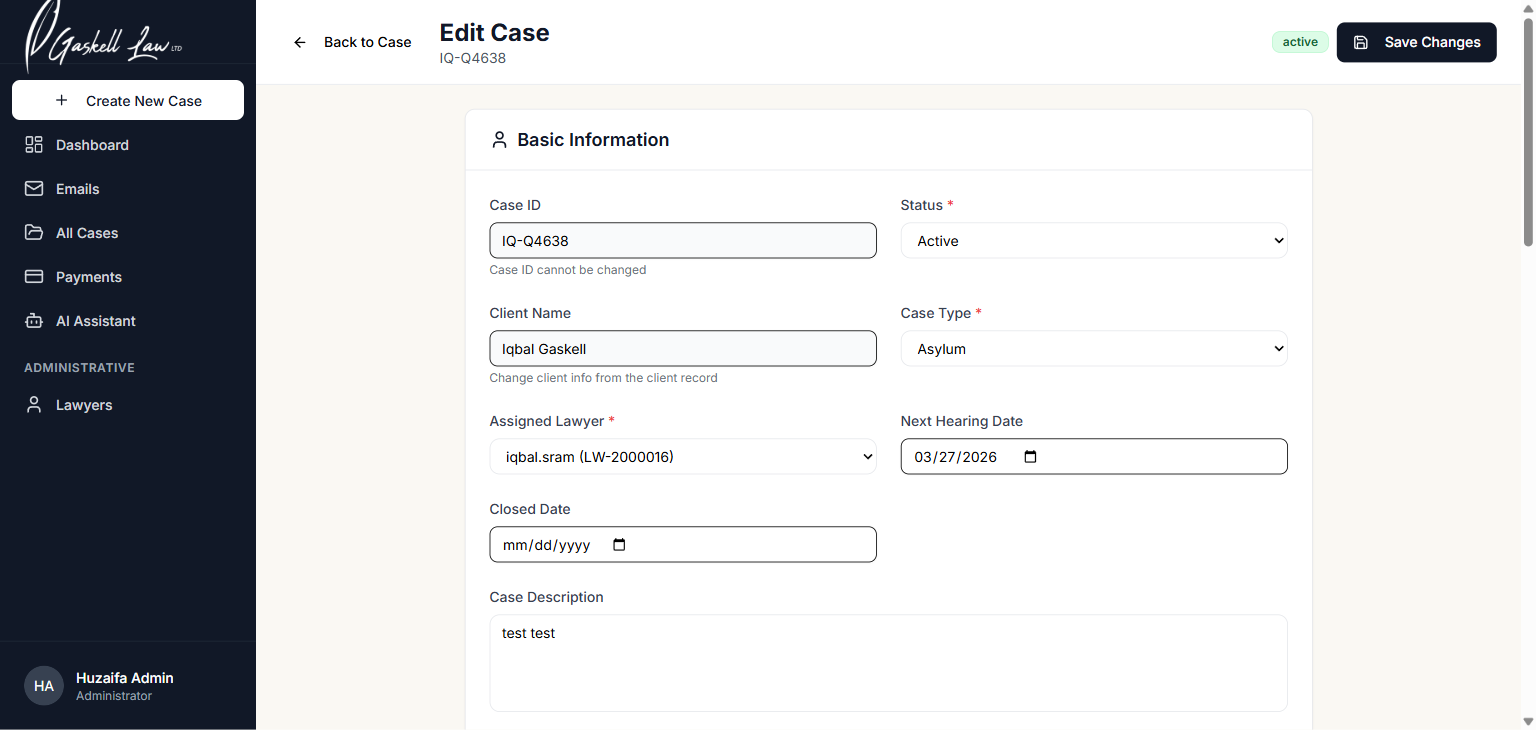
Edit Case form — update status, case type, lawyer, hearing date, description, then click Save Changes.
Click "Edit Case" from the top of the case detail page.
Update any field: Status, Case Type, Assigned Lawyer, Next Hearing Date, Closed Date, or Description.
Click "Save Changes". Or click "Back to Case" to cancel without saving.
The Case ID cannot be changed — it is a fixed, permanent identifier assigned when the case is first created.
Case Tab: Client Profile
The Client Profile tab is the default tab when you open a case. It shows all personal information about the client, including contact details, case overview, and identity verification.
Client Profile tab — displays Case Overview section, Client Information section, and ID Verification section.
| Section | Information Shown |
|---|---|
| Case Overview | Case ID, Case Type, Status, Assigned Lawyer, Next Hearing Date, Closed Date, Created date, Last Updated, Created By, and Case Description |
| Client Information | Full Name, Client ID, Date of Birth, Gender, Occupation, Email, Phone Number, Home Address, Client Status |
| ID Verification | Identity documents used to verify the client (passport, driving licence, etc.) |
Case Tab: Documents
The Documents tab is a secure file manager for the case. You can upload, view, organise and delete documents — and create folders to keep everything organised.
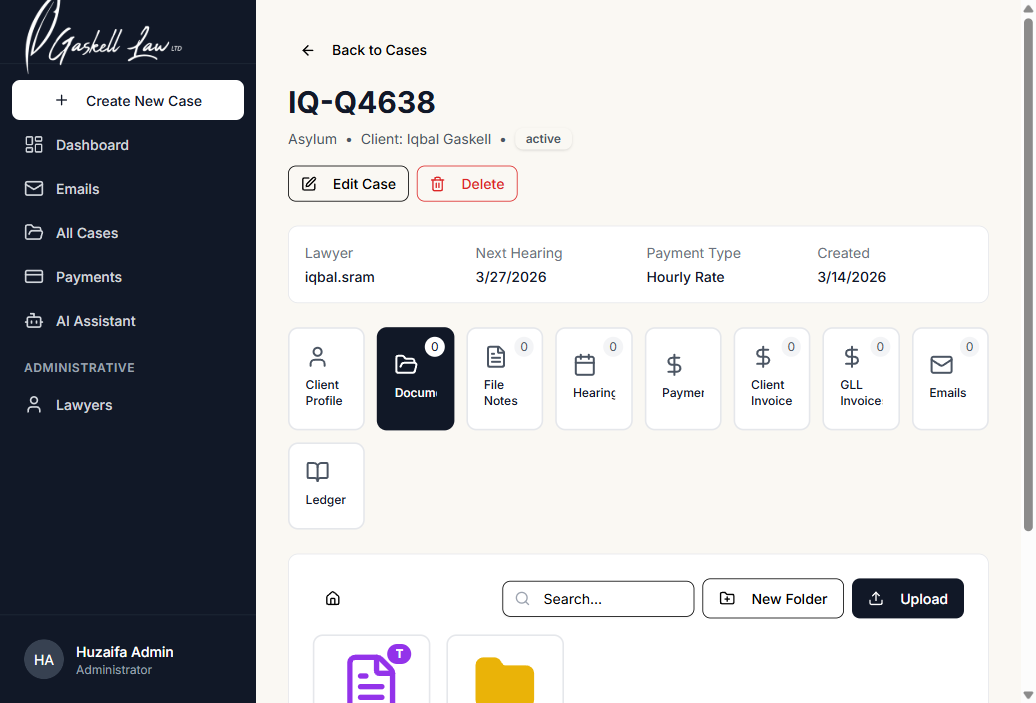
Documents tab — shows folders and files, with Upload and New Folder buttons at the top right.
📤 How to Upload a Document
Click the Upload button (top right of the documents area).
A file picker will open — select the file from your computer.
The file will appear in the document list immediately after uploading.
📂 How to Create a Folder
Click the New Folder button.
Type a folder name (e.g. "Court Documents", "Client ID Papers").
Click the new folder to open it and upload files inside it.
| Type | Description |
|---|---|
| 📄 Template file | Pre-formatted document like client care letters — click View to open |
| 📂 Folder | A collection of related files — click to open |
| 📎 Uploaded file | A file uploaded by a team member |
Always double-check before clicking the delete (bin 🗑️) icon on a document. There is no undo.
Case Tab: File Notes
File Notes are time-recorded notes made by fee earners (solicitors, barristers, paralegals) about the work they have done on a case. This data is used for billing and case tracking.
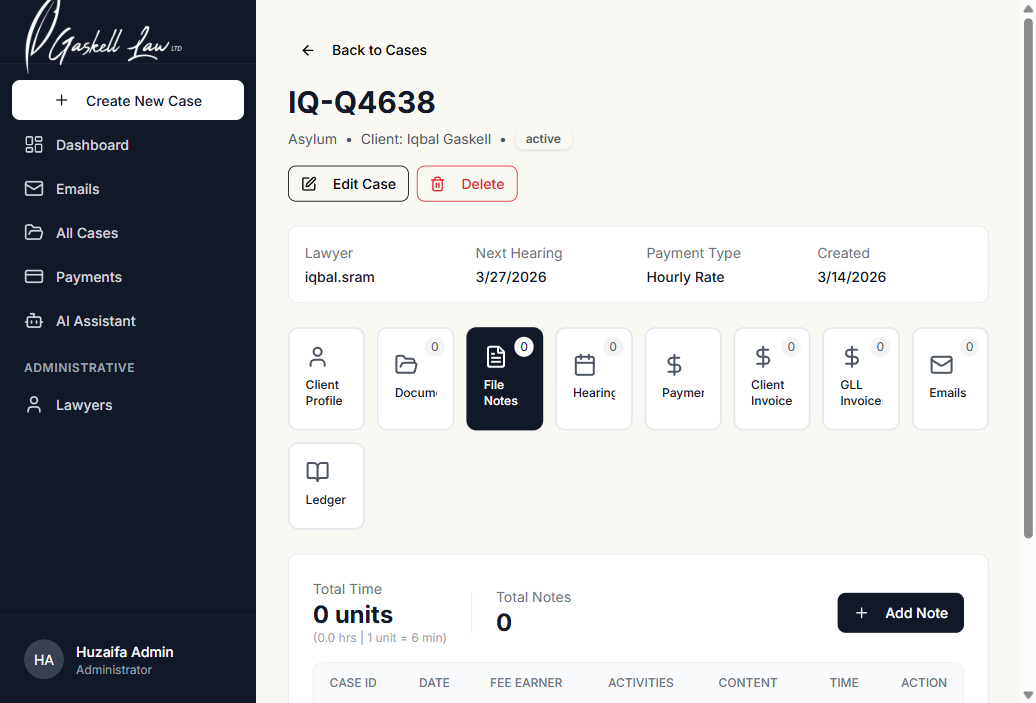
File Notes tab — shows total time recorded, number of notes, and the full notes table.
Time Units: Time is recorded in units, where 1 unit = 6 minutes. So 10 units = 1 hour of billable work.
➕ How to Add a File Note
Click "+ Add Note" (top right).
Select the Date the work was done.
Select the Fee Earner who did the work.
Choose the Activity type (e.g. phone call, drafting, research).
Write a description in the Content field.
Enter the Time in units.
Click Save.
Case Tab: Hearings
The Hearings tab records all court dates for the case. Keep this updated so no hearing is ever missed.
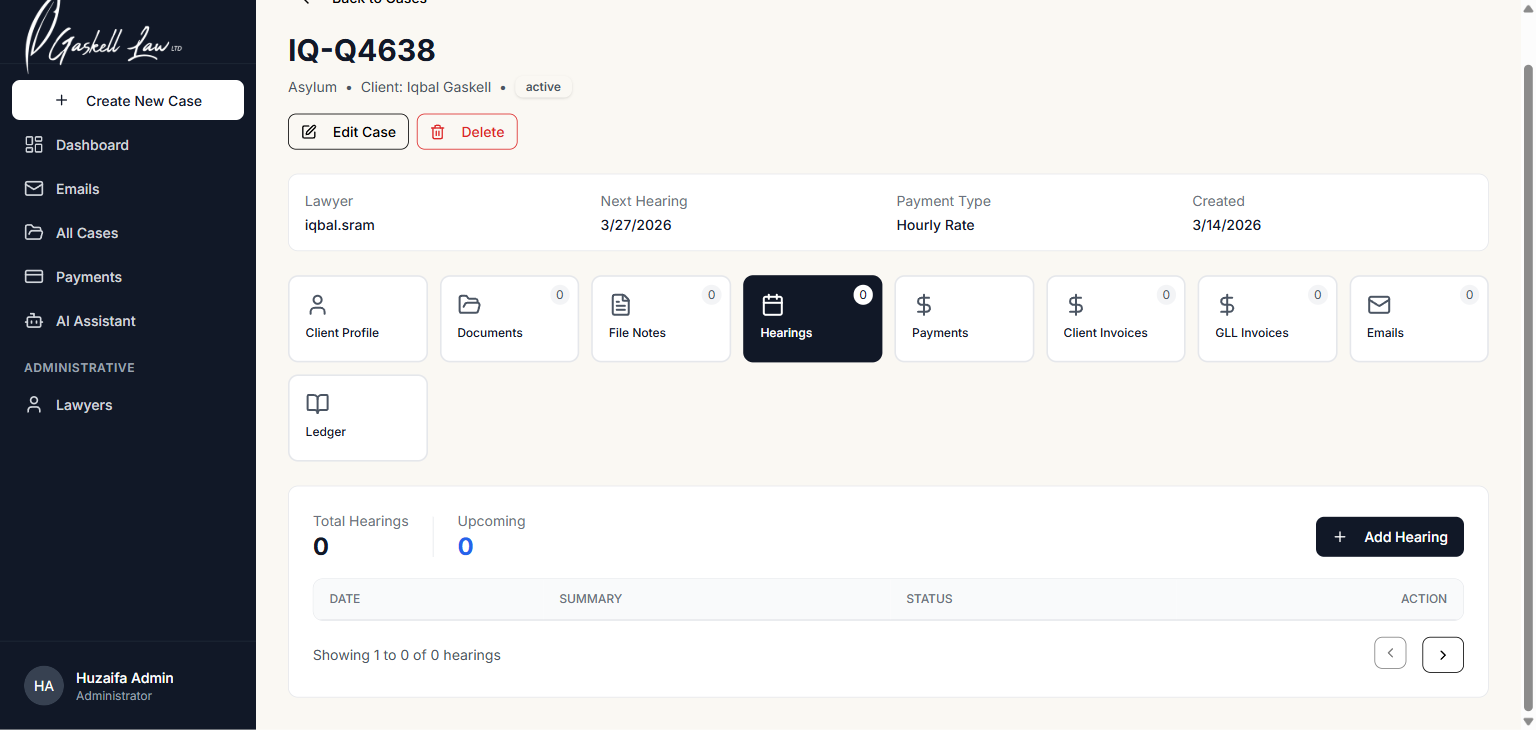
Hearings tab — shows total hearings, upcoming count, and the hearings table with date, summary, and status.
➕ How to Add a Hearing
Click "+ Add Hearing".
Select the hearing Date.
Write a Summary (what the hearing is about).
Set the Status (Scheduled, Completed, or Adjourned).
Click Save.
| Status | Meaning |
|---|---|
| Scheduled | The hearing is upcoming and booked in the calendar |
| Completed | The hearing has taken place |
| Adjourned | The hearing was postponed to a later date |
Case Tab: Payments
The Payments tab shows a full financial summary for this specific case — how much has been invoiced, paid, and what is still outstanding.
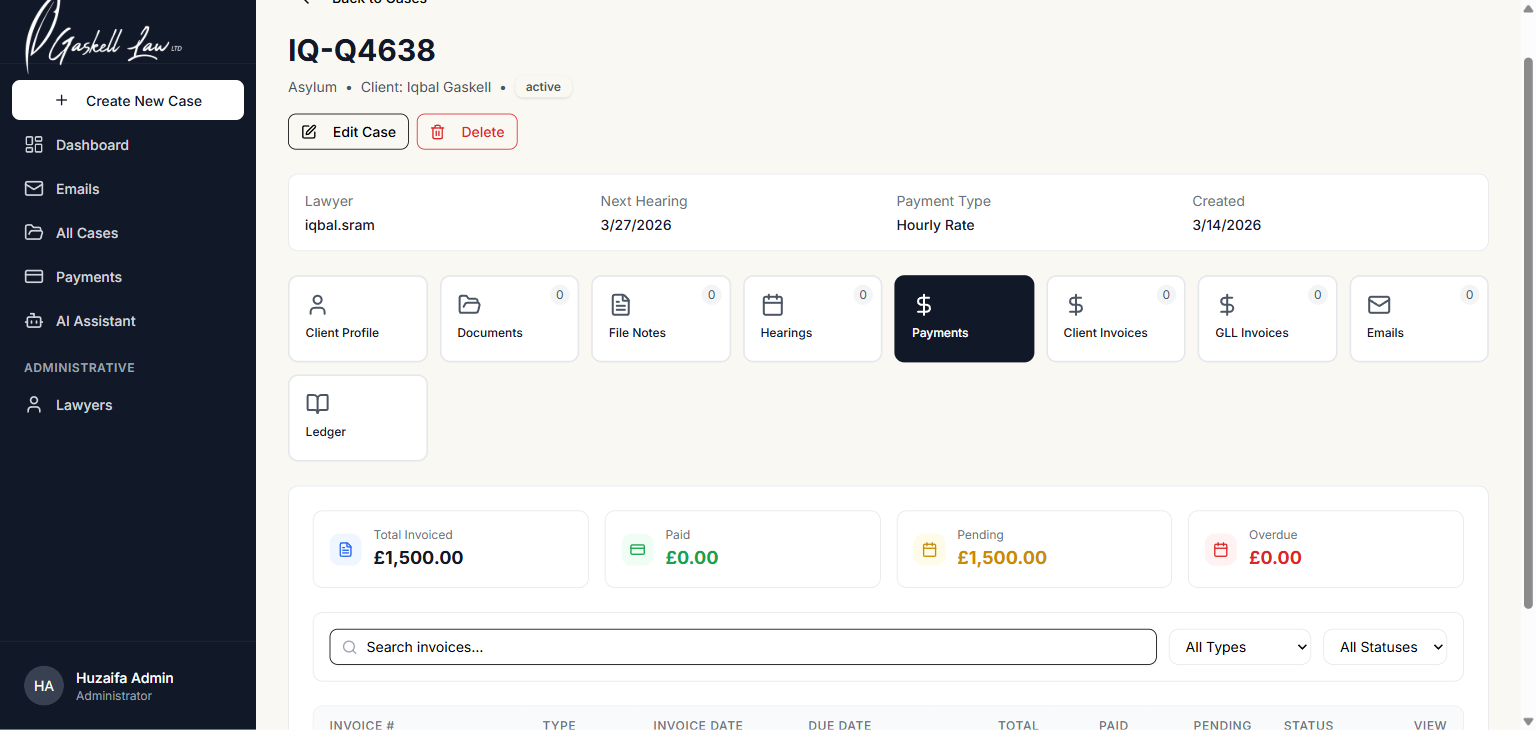
Payments tab — four summary cards plus a searchable invoice table with status and type filters.
| Card | What It Shows |
|---|---|
| 📄 Total Invoiced | Full amount billed across all invoices for this case |
| ✅ Paid | Amount already received (shown in green) |
| ⏳ Pending | Amount billed but not yet paid — not overdue (orange) |
| 🔴 Overdue | Amount past the payment due date — follow up needed (red) |
Case Tab: Client Invoices
Client Invoices are the bills sent directly to the client. This tab shows all invoices raised for this case, their amounts, and payment status.
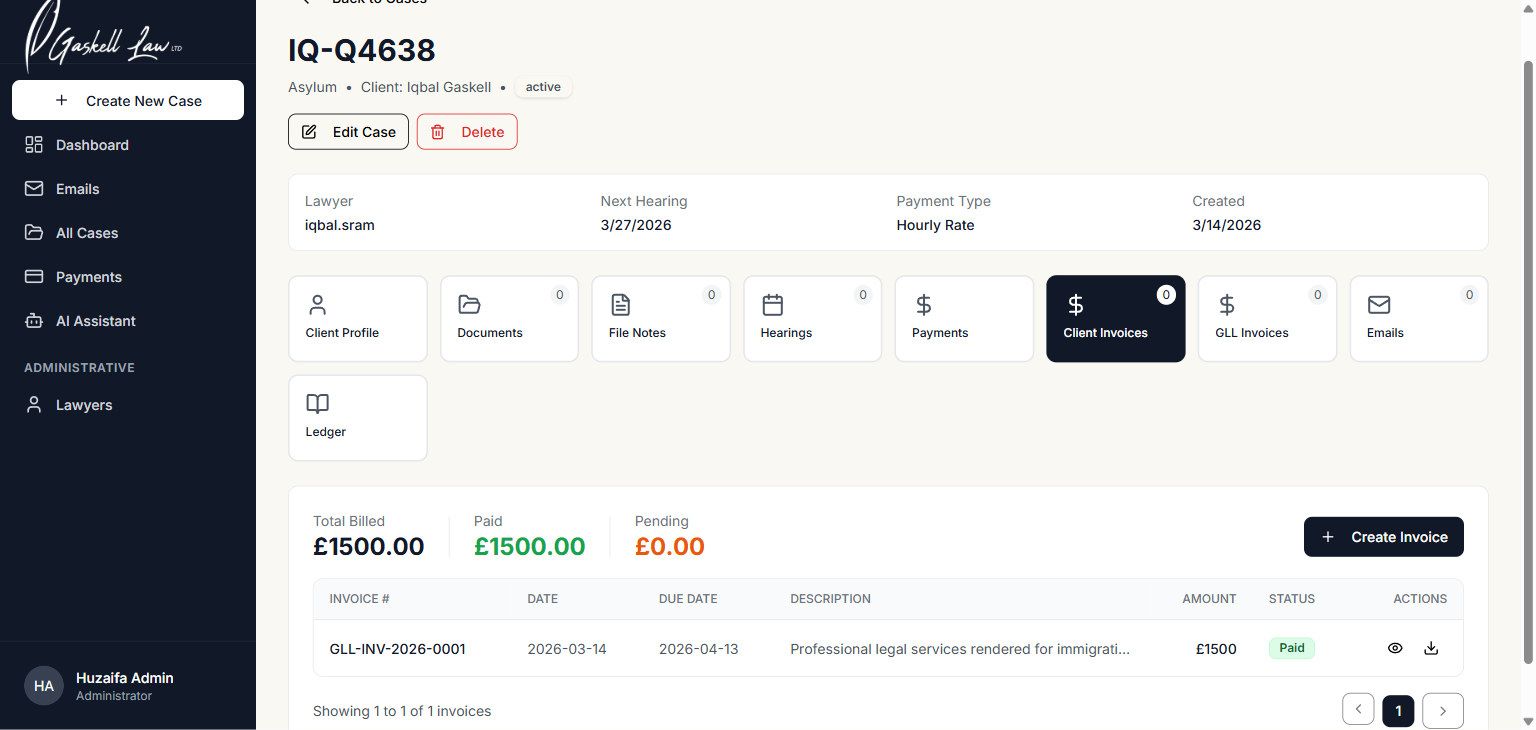
Client Invoices tab — shows billing summary and a list of all invoices with status and download options.
➕ How to Create a Client Invoice
Click "+ Create Invoice".
Fill in the description, amount, and due date.
Click Save — the invoice will appear in the table.
| Column | What It Shows |
|---|---|
| Invoice # | Unique invoice reference (e.g. GLL-INV-2026-0001) |
| Date | When the invoice was created |
| Due Date | When payment is expected by |
| Description | What the invoice is for |
| Amount | Total amount due |
| Status | Paid Pending Overdue |
| Actions | 👁️ View | ⬇️ Download PDF |
Case Tab: GLL Invoices
GLL Invoices are internal invoices raised by Gaskell Law Limited — used to track disbursements, firm costs, or inter-office charges for this case. They are separate from client-facing bills.
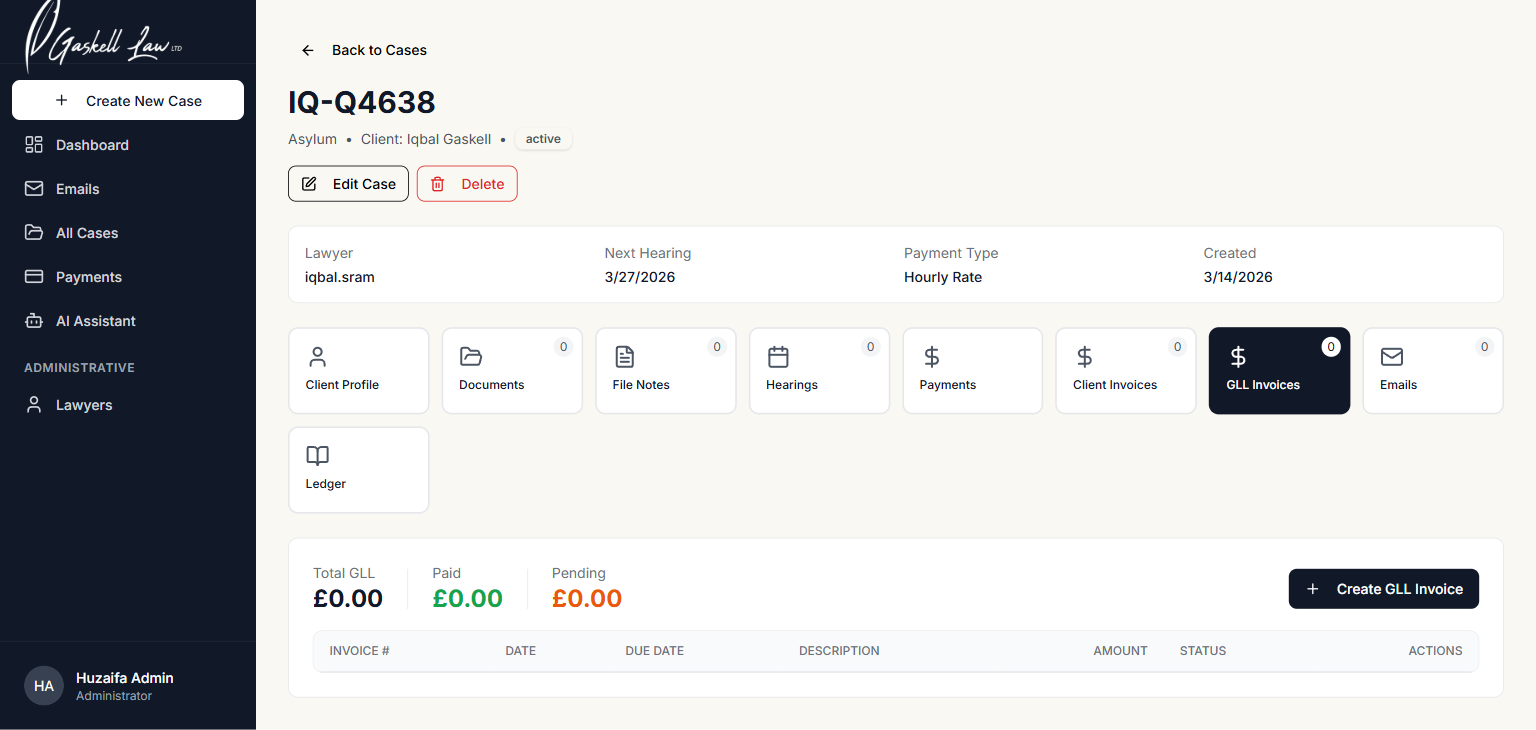
GLL Invoices tab — same layout as Client Invoices but for internal Gaskell Law billing records.
GLL = Gaskell Law Limited. These invoices track internal costs and are not sent to the client. They help the firm keep client costs and firm costs clearly separated.
Case Tab: Case Emails
The Emails tab inside a case shows all emails that have been linked to this specific case — giving you a complete communication history in one place.
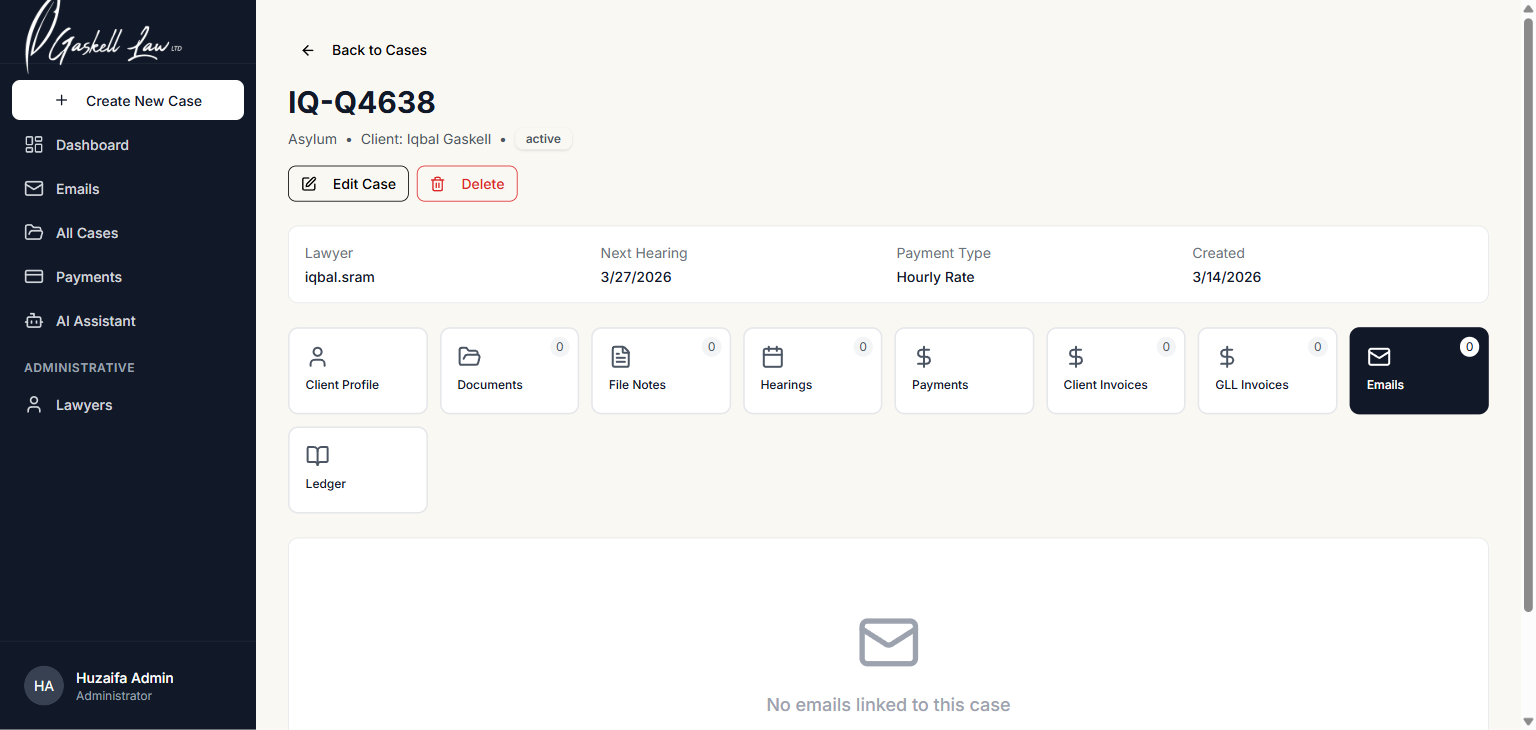
Case Emails tab — shows all emails linked to this case. If empty, link emails from the main Emails page.
To link an email to a case: Go to the main Emails page (sidebar), find the email in your Inbox or Sent folder, and use the "Link to Case" option. The email will then appear here.
Case Tab: Ledger
The Ledger is a double-entry financial record for the case, tracking both the Office Account (firm's money) and the Client Account (money held on behalf of the client).
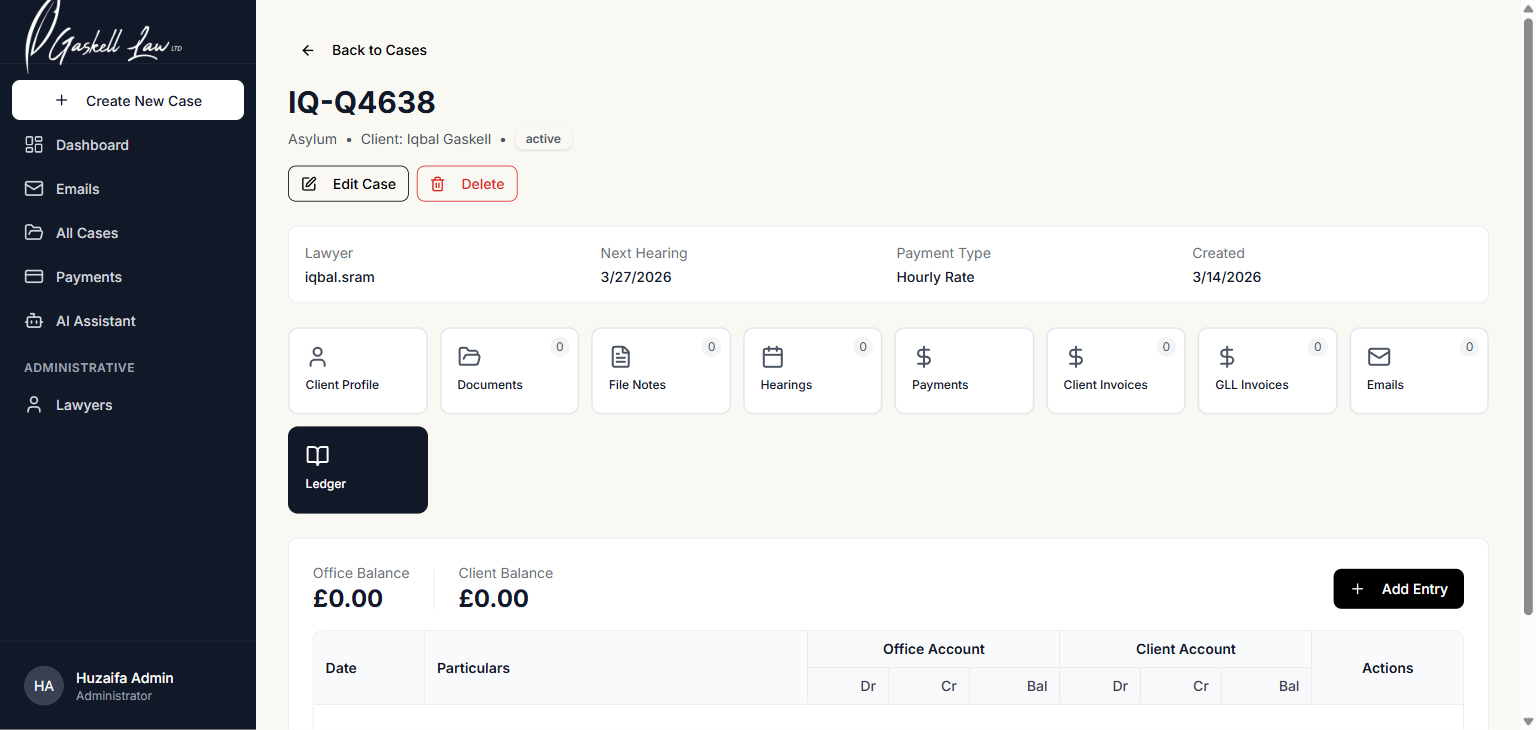
Ledger tab — Office Balance and Client Balance summary cards, then a double-entry transactions table.
| Term | What It Means |
|---|---|
| Office Balance | The firm's running balance for this case — money owed to or by Gaskell Law |
| Client Balance | Money held on behalf of the client |
| Dr (Debit) | Money going out / amount owed |
| Cr (Credit) | Money coming in / amount received |
| Bal | Running balance after each transaction |
| Particulars | Description of each transaction entry |
The Ledger is a legal financial record. Only authorised fee earners or accounts staff should add entries. Always double-check amounts before saving — errors are difficult to correct.
Emails — Full Mail System
Click Emails in the sidebar to access the complete email system. Read your inbox, send emails, manage drafts, and configure your Gaskell Law email account all from here.
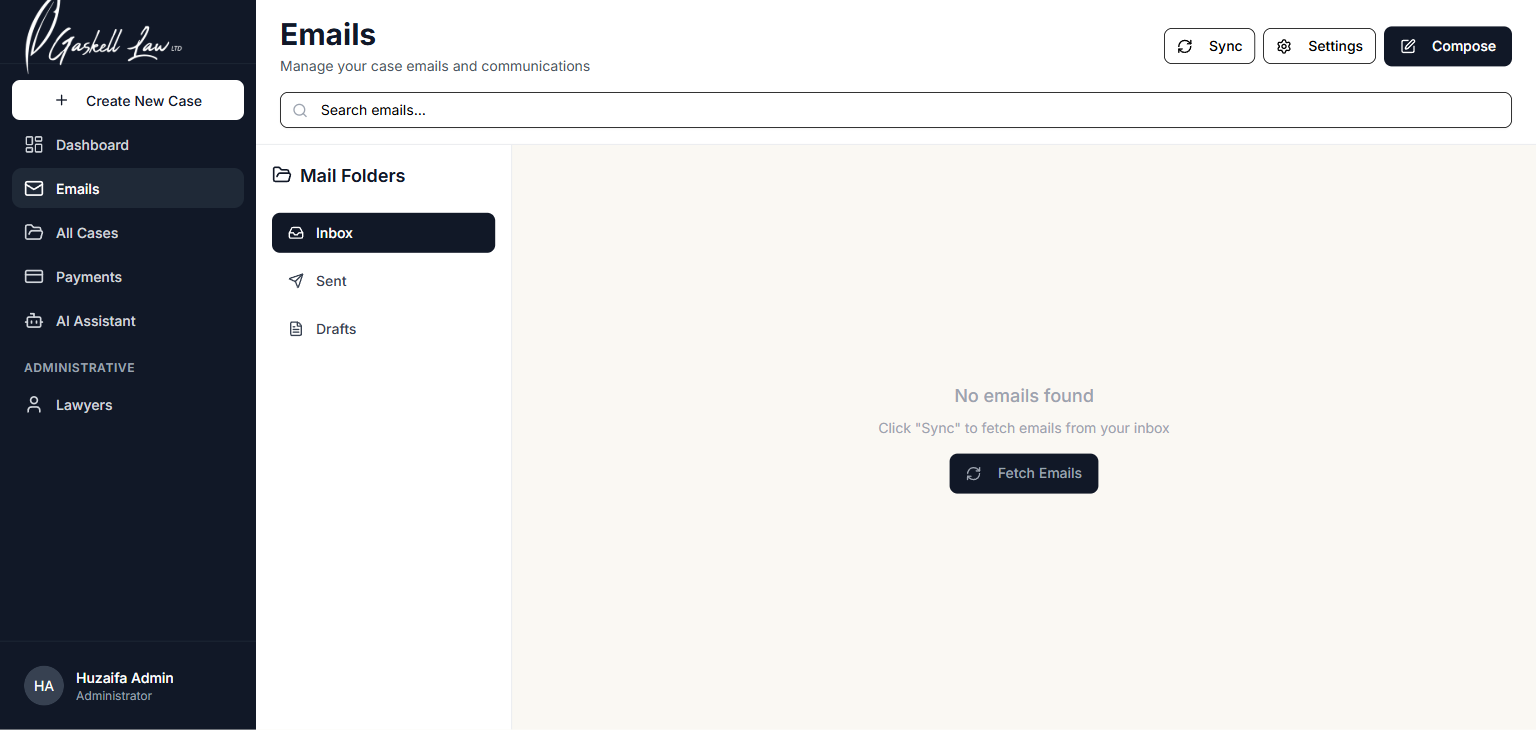
Emails page — left panel shows mail folders (Inbox, Sent, Drafts); right panel shows email list. Sync, Settings and Compose buttons are at the top right.
| Button | What It Does |
|---|---|
| 🔄 Sync | Fetches new emails from your mail server — click this to refresh your inbox |
| ⚙️ Settings | Opens the email configuration page (SMTP/IMAP settings + signature) |
| ✏️ Compose | Opens the compose window to write and send a new email |
⚙️ Email Settings — Connecting Your Gaskell Law Email
Before emails will work, you need to configure your email account. Click Settings on the Emails page.
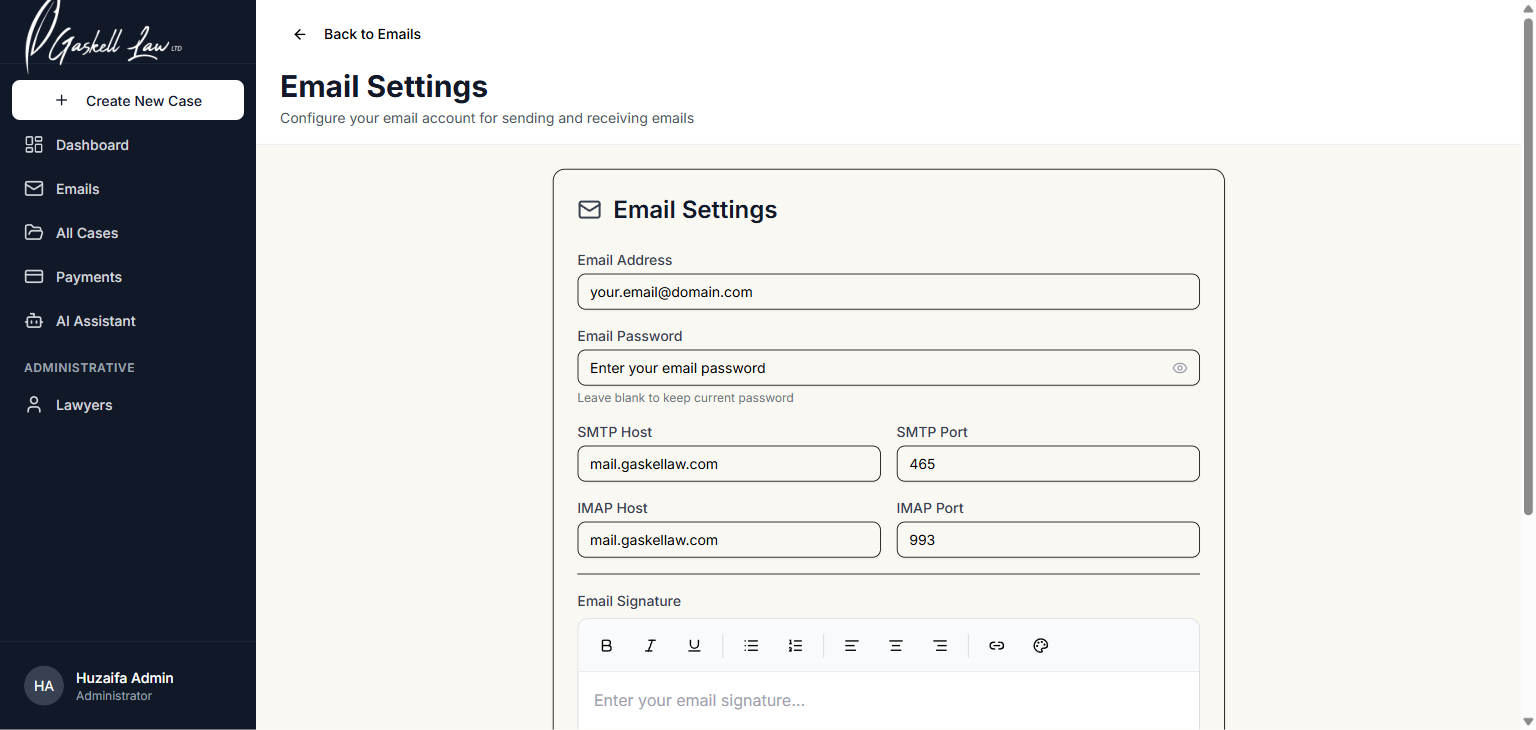
Email Settings — enter your Gaskell Law email address, SMTP/IMAP server details, and your email signature.
| Field | What to Enter |
|---|---|
| Email Address | Your Gaskell Law email (e.g. john.smith@gaskellaw.com) |
| Email Password | Your email account password (same as your system login password initially) |
| SMTP Host | mail.gaskellaw.com |
| SMTP Port | 465 |
| IMAP Host | mail.gaskellaw.com |
| IMAP Port | 993 |
| Email Signature | Your name, role and contact details shown at the bottom of every email you send |
Go to Emails → Settings.
Fill in all the fields above with your Gaskell Law details.
Click Save Settings.
Return to the Emails page and click Sync — your emails will now load.
Contact your system administrator if you are unsure about your email server details. They can provide the correct SMTP/IMAP configuration for your account.
Payments — All Invoices Overview
Click Payments in the sidebar to see a complete financial overview across all cases — total invoiced, paid, pending and overdue amounts across every client and case.
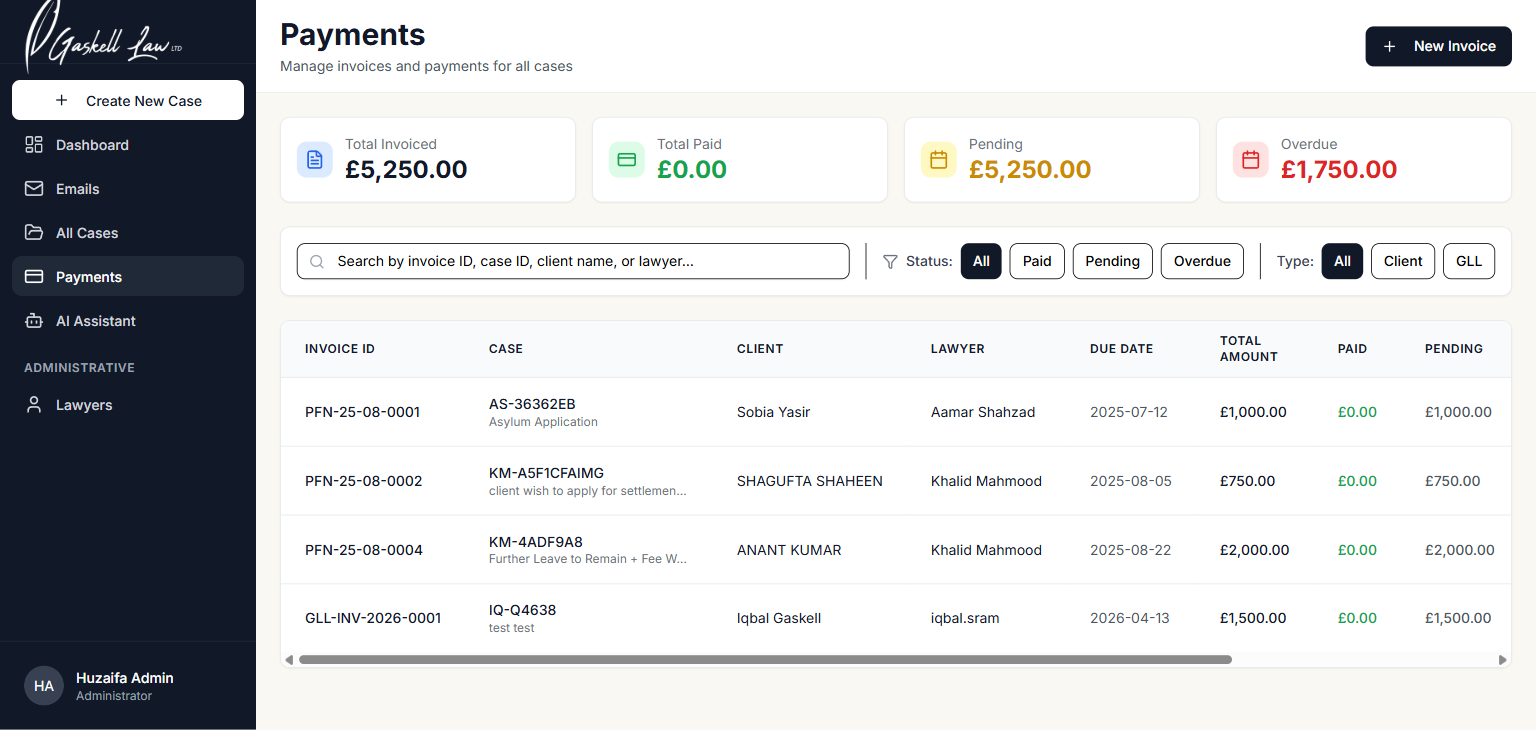
Payments page — four summary cards then a filterable, searchable table of all invoices across every case.
| Summary Card | What It Shows |
|---|---|
| 📄 Total Invoiced | Total amount billed across ALL cases in the system |
| ✅ Total Paid | Total amount received from all clients |
| ⏳ Pending | Awaiting payment — not yet overdue |
| 🔴 Overdue | Past due date — immediate follow-up required |
🔍 Filtering Invoices
| Filter | Options |
|---|---|
| Search bar | Search by Invoice ID, Case ID, Client name, or Lawyer |
| Status filter | All · Paid · Pending · Overdue |
| Type filter | All · Client (bills to clients) · GLL (internal firm invoices) |
AI Legal Assistant
The AI Legal Assistant is a built-in chatbot trained on UK Law. Ask it any legal question in plain English and receive an instant, detailed answer.
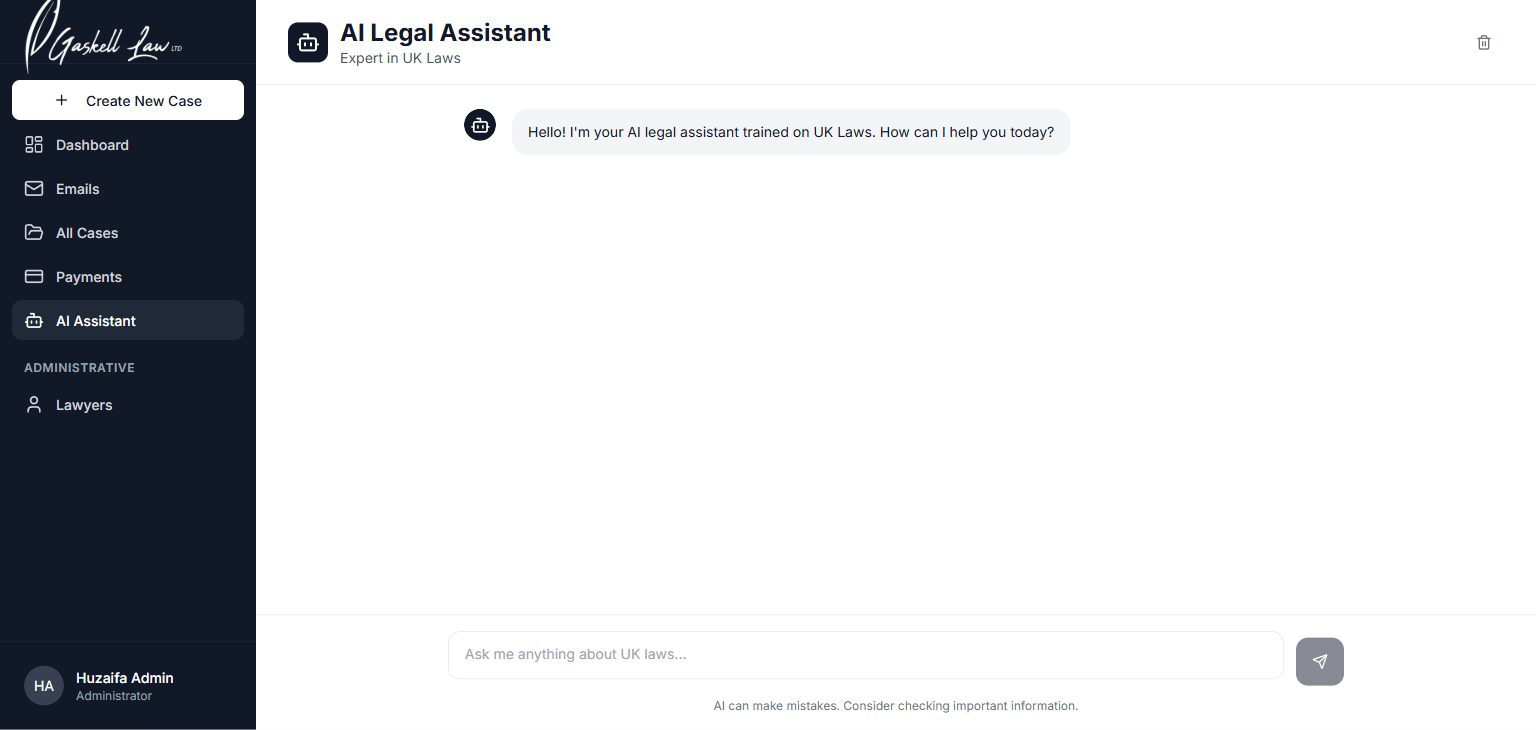
AI Legal Assistant — type your question in the input box at the bottom and press Enter. The AI responds instantly in the chat panel.
💬 How to Use the AI Assistant
Click AI Assistant in the left sidebar.
Click in the text box at the bottom that says "Ask me anything about UK laws…"
Type your question in plain English — for example: "What are the grounds for asylum in the UK?"
Press Enter on your keyboard or click the send (paper aeroplane) button.
The AI will reply within a few seconds in the chat panel above.
You can keep asking follow-up questions — the AI remembers the conversation.
The AI assistant can make mistakes or provide incomplete information. Always verify important legal information with a qualified solicitor before relying on it for official advice, court proceedings, or client guidance.
Click the bin icon (top right of the AI page) to clear the chat history and start a fresh conversation.
Lawyers — Managing Legal Staff
The Lawyers section (visible to Administrators only) lets you register, view, edit and manage all legal staff in the system. Lawyers must be registered here before they can be assigned to cases.
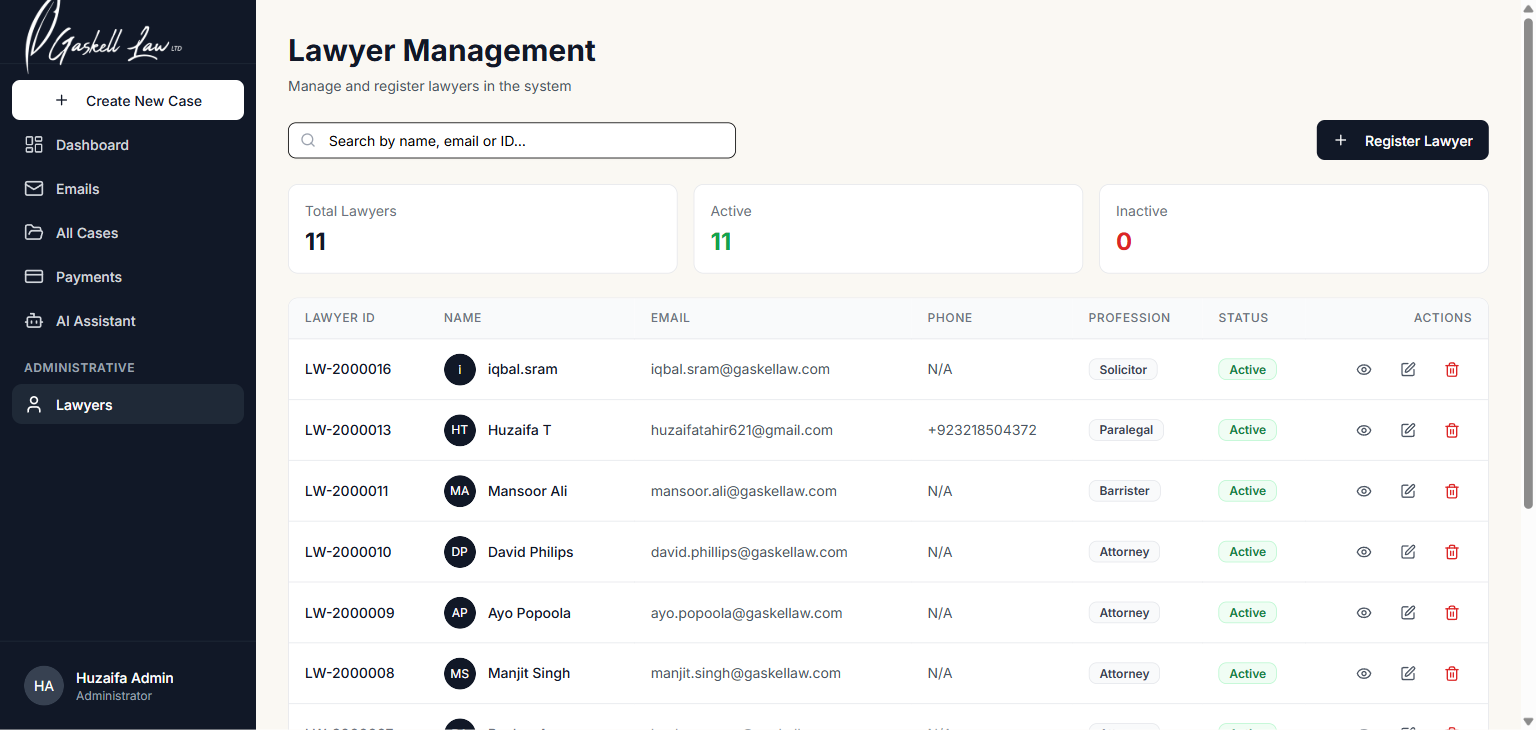
Lawyer Management page — shows all registered legal staff with their ID, name, email, profession and status.
| Column | What It Shows |
|---|---|
| Lawyer ID | Unique staff ID, e.g. LW-2000016 |
| Name | Full name with avatar initials |
| Contact email address | |
| Phone | Phone number (if provided) |
| Profession | Solicitor, Barrister, Paralegal, or Attorney |
| Status | Active or Inactive |
| Actions | 👁️ View | ✏️ Edit | 🗑️ Delete |
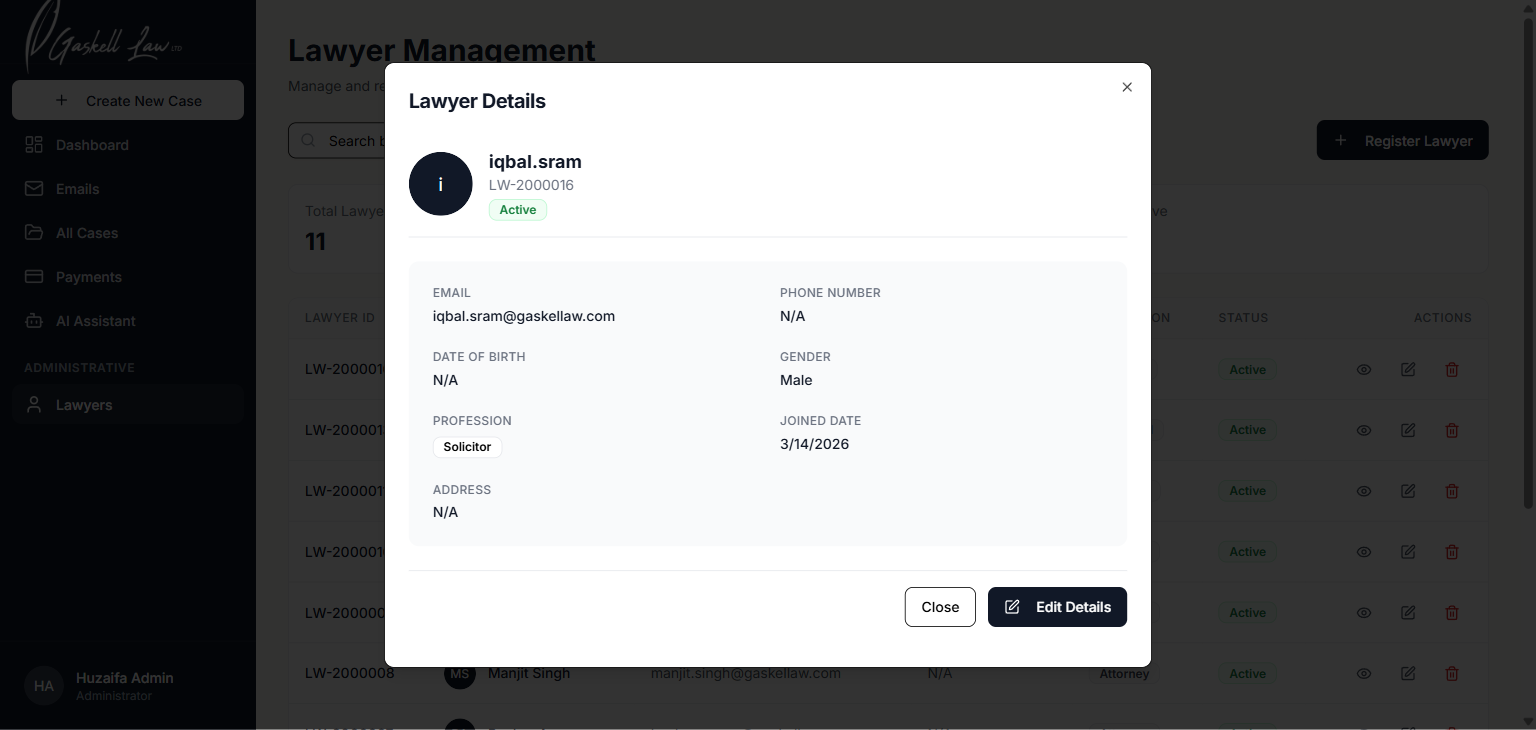
Lawyer Details pop-up — shows full profile including name, ID, email, phone, date of birth, gender, profession, joined date, and address.
➕ How to Register a New Lawyer
Click "+ Register Lawyer" (top right of the Lawyers page).
Fill in all the required fields: name, email, phone, date of birth, profession, and address.
Click Save. The lawyer is now registered and can be assigned to cases from the Edit Case page.
Ensure they are not assigned to any active cases. Go to All Cases, filter by that lawyer's name, and reassign their cases first.
Tips, Tricks & Frequently Asked Questions
⚡ Top Tips for Every User
Search Before Creating
Always search All Cases to check if a client already exists before creating a new case.
Live Search Filtering
Type in any search box and the list filters instantly — no need to press Enter.
Click Any Row
Click anywhere on a table row to open its full detail page — no need to find a button.
Watch the Red Numbers
Overdue invoices are highlighted in red — check Payments regularly to stay on top of billing.
Sync Emails Regularly
Click Sync on the Emails page daily to ensure all client emails are pulled in to the system.
Log File Notes Daily
Record your billable time on the same day you do the work — it's easy to forget details later.
❓ Frequently Asked Questions
The Lawyers section is only visible to users with the Administrator role. Contact your admin if you need access.
Click the Sync button on the Emails page. If emails still don't appear, go to Settings and verify your IMAP details are correct.
Your session may have expired. Refresh the browser. If the issue continues, log out and sign in again.
Go to the Emails page → open the email → use the "Link to Case" option and select the case. The email will then appear in that case's Emails tab.
No. Case IDs are automatically generated and permanently fixed. They ensure every case has a unique, traceable reference.
Client Invoices are bills sent to the client. GLL Invoices are internal invoices that track Gaskell Law's own costs — never sent to the client.
Go to https://dashboard.gaskellaw.com/profile and fill in the Security section. See Section 4 of this guide for full instructions.
Deletions are generally permanent. Contact your system administrator immediately — they may be able to restore data from a backup if you act quickly.
1 unit = 6 minutes. So 10 units = 1 hour of billable time. This is standard legal time recording practice.
🔒 Security Best Practices
- Change the default password
AskHuzaifa178*immediately on your first login - Never share your password with anyone — including IT staff or management
- Choose a strong, unique password (mix of letters, numbers, and symbols)
- Always log out when using a shared or public computer
- Do not leave the system open and unattended on your screen
- Report any suspicious account activity to your administrator immediately
- Do not write your password on paper near your computer